
Introduction to R and RStudio
Last updated on 2026-04-23 | Edit this page
Estimated time: 45 minutes
Overview
Questions
- Why should you use
RandRStudio? - How do you get started working in
RandRStudio?
Objectives
- Understand the difference between
RandRStudio - Describe the purpose of the different
RStudiopanes - Organize files and directories into
RProjects
Acknowledgement
This workshop was adapted using material from the Data Carpentry
lessons R for Ecologists,
specifically introduction-r-rstudio.
Other Materials
What are R and RStudio?
R refers to a programming language as well as the
software that runs R code.
RStudio
is a software interface that can make it easier to write R scripts and
interact with the R software. It’s a very popular platform,
and RStudio also maintains the tidyverse series of
packages we will use in these workshops.
Why learn R?
You can walk through this analogy if you want, or skip over it if you don’t find it useful.
You’re working on a project when your advisor suggests that you begin working with one of their long-time collaborators. According to your advisor, this collaborator is very talented, but only speaks a language that you don’t know. Your advisor assures you that this is ok, the collaborator won’t judge you for starting to learn the language, and will happily answer your questions. However, the collaborator is also quite pedantic. While they don’t mind that you don’t speak their language fluently yet, they are always going to answer you quite literally.
You decide to reach out to the collaborator. You find that they email you back very quickly, almost immediately most of the time. Since you’re just learning their language, you often make mistakes. Sometimes, they tell you that you’ve made a grammatical error or warn you that what you asked for doesn’t make a lot of sense. Sometimes these warnings are difficult to understand, because you don’t really have a grasp of the underlying grammar. Sometimes you get an answer back, with no warnings, but you realize that it doesn’t make sense, because what you asked for isn’t quite what you wanted. Since this collaborator responds almost immediately, without tiring, you can quickly reformulate your question and send it again.
In this way, you begin to learn the language your collaborator speaks, as well as the particular way they think about your work. Eventually, the two of you develop a good working relationship, where you understand how to ask them questions effectively, and how to work through any issues in communication that might arise.
This collaborator’s name is R.
When you send commands to R, you get a response back.
Sometimes, when you make mistakes, you will get back a nice, informative
error message or warning. However, sometimes the warnings seem to
reference a much “deeper” level of R than you’re familiar
with. Or, even worse, you may get the wrong answer with no warning
because the command you sent is perfectly valid, but isn’t what you
actually want. While you may first have some success working with
R by memorizing certain commands or reusing other scripts,
this is akin to using a collection of tourist phrases or pre-written
statements when having a conversation. You might make a mistake (like
getting directions to the library when you need a bathroom), and you are
going to be limited in your flexibility (like furiously paging through a
tourist guide looking for the term for “thrift store”).
This is all to say that we are going to spend a bit of time digging
into some of the more fundamental aspects of the R
language, and these concepts may not feel as immediately useful as, say,
learning to make plots with ggplot2. However, learning
these more fundamental concepts will help you develop an understanding
of how R thinks about data and code, how to interpret error
messages, and how to flexibly expand your skills to new situations.
R does not involve lots of pointing and clicking, and
that’s a good thing
Since R is a programming language, the results of your
analysis do not rely on remembering a succession of pointing and
clicking, but instead on a series of written commands, and that’s a good
thing! So, if you want to redo your analysis because you collected more
data, you don’t have to remember which button you clicked in which order
to obtain your results; you just have to run your script again.
Working with scripts makes the steps you used in your analysis clear, and the code you write can be inspected by someone else who can give you feedback and spot mistakes.
Working with scripts forces you to have a deeper understanding of what you are doing, and facilitates your learning and comprehension of the methods you use.
R code is great for reproducibility
Reproducibility is when someone else (including your future self) can obtain the same results from the same dataset when using the same analysis.
R integrates with other tools to generate manuscripts
from your code. If you collect more data, or fix a mistake in your
dataset, the figures and the statistical tests in your manuscript are
updated automatically.
An increasing number of journals and funding agencies expect analyses
to be reproducible, so knowing R will give you an edge with
these requirements.
R is interdisciplinary and extensible
With tens of thousands of packages that can be installed to extend
its capabilities, R provides a framework that allows you to
combine statistical approaches from many scientific disciplines to best
suit the analytical framework you need to analyze your data. For
instance, R has packages for image analysis, GIS, time
series, population genetics, and a lot more.
R works on data of all shapes and sizes
The skills you learn with R scale easily with the size
of your dataset. Whether your dataset has hundreds or millions of lines,
it won’t make much difference to you.
R is designed for data analysis. It comes with special
data structures and data types that make handling of missing data and
statistical factors convenient.
R can read data from many different file types,
including geospatial data, and connect to local and remote
databases.
R produces high-quality graphics
R has well-developed plotting capabilities, and the
ggplot2 package is one of, if not the most powerful pieces
of plotting software available today. We can learn to use
ggplot2 in future workshops if you wish.
R has a large and welcoming community
Thousands of people use R daily. Many of them are willing to help you
through mailing lists and websites such as Stack Overflow, or on
the RStudio community.
Since R is very popular among researchers, most of the
help communities and learning materials are aimed towards other
researchers. Python is a similar language to
R, and can accomplish many of the same tasks, but is widely
used by software developers and software engineers, so
Python resources and communities are not as oriented
towards researchers.
Navigating RStudio
We will use the RStudio integrated development
environment (IDE) to write code into scripts, run code in
R, navigate files on our computer, inspect objects we create in
R, and look at the plots we make. RStudio has many other
features that can help with things like version control, developing
R packages, and writing Shiny apps, but we
won’t cover those in this workshop.
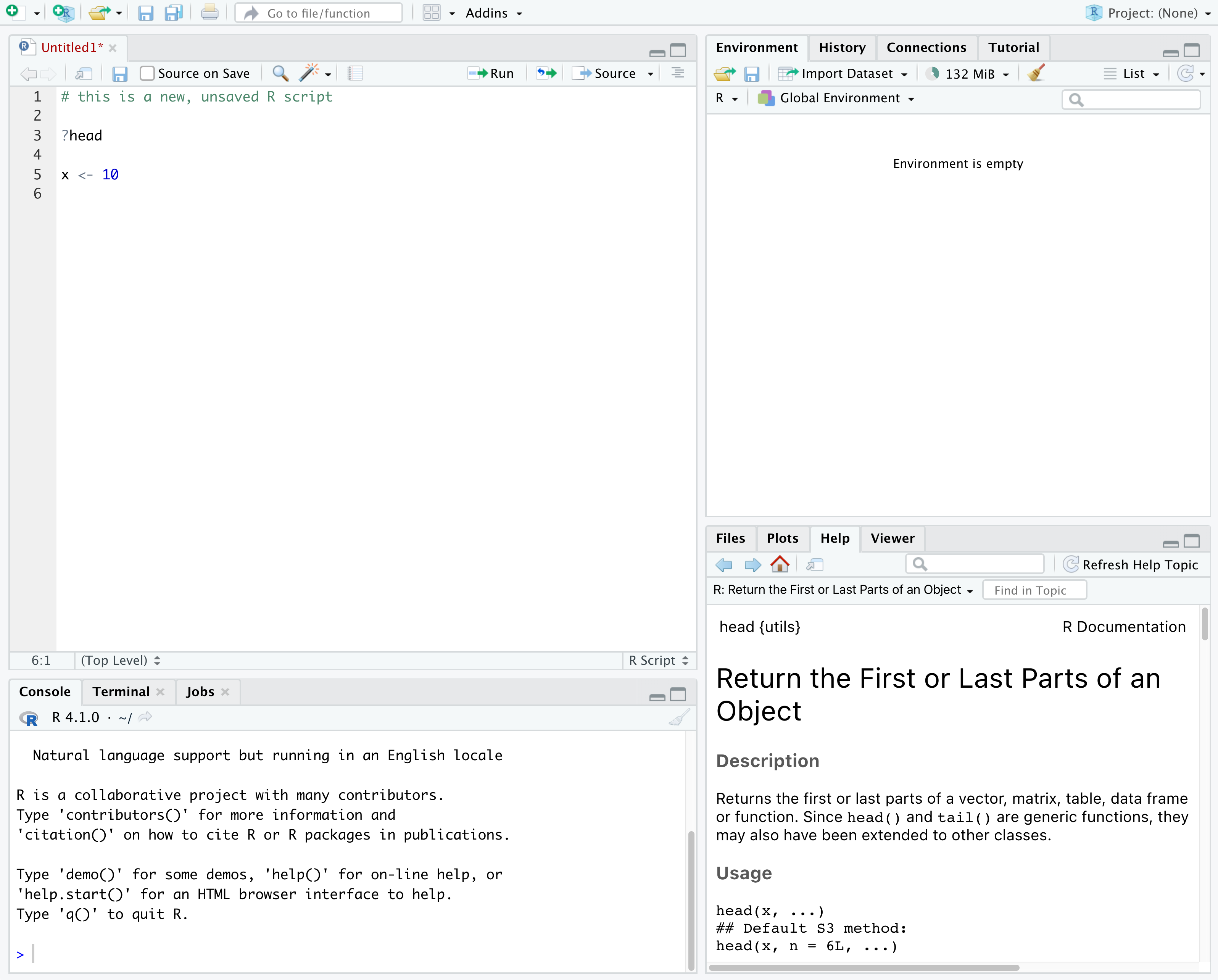
In the above screenshot, we can see 4 “panes” in the default layout:
- Top-Left: the
Sourcepane that displays scripts and other files.- If you only have 3 panes, and the Console pane is in the top left,
press
Shift+Cmd+N(Mac) orShift+Ctrl+N(WindowsorLinux) to open a blankRscript, which should make theSourcepane appear.
- If you only have 3 panes, and the Console pane is in the top left,
press
- Top-Right: the
Environment/Historypane, which shows all the objects in your current R session (Environment) and your command history (History)- there are some other tabs here, including
Connections,Build,Tutorial, and possiblyGit - we won’t cover any of the other tabs, but
RStudiohas lots of other useful features
- there are some other tabs here, including
- Bottom-Left: the
Consolepane, where you can interact directly with anRconsole, which interpretsRcommands and prints the results- There are also tabs for
TerminalandJobs
- There are also tabs for
- Bottom-Right: the
Files/Plots/Help/Viewerpane to navigate files or view plots and help pages
You can customize the layout of these panes, as well as many settings
such as RStudio color scheme, font, and even keyboard
shortcuts. You can access these settings by going to the menu bar, then
clicking on Tools → Global Options.
RStudio puts most of the things you need to work in
R into a single window, and also includes features like
keyboard shortcuts, autocompletion of code, and syntax highlighting
(different types of code are colored differently, making it easier to
navigate your code).
Getting set up in RStudio
It is a good practice to organize your projects into self-contained folders right from the start, so we will start building that habit now. A well-organized project is easier to navigate, more reproducible, and easier to share with others. Your project should start with a top-level folder that contains everything necessary for the project, including data, scripts, and images, all organized into sub-folders.
RStudio provides a Projects feature that
can make it easier to work on individual projects in R. We
will create a project that we will keep everything for this
workshop.
- Start
RStudio(you should see a view similar to the screenshot above). - In the top right, you will see a blue 3D cube and the words
Project: (None). Click on this icon. - Click
New Projectfrom the dropdown menu. - Click
New Directory, thenNew Project - Type out a name for the project, such as
intro_r - Put it in a convenient location using the
Create project as a subdirectory of:section. We recommend yourDesktop. You can always move the project somewhere else later, because it will be self-contained. - Click
Create Projectand your new project will open.
Next time you open RStudio, you can click that 3D cube
icon, and you will see options to open existing projects, like the one
you just made.
One of the benefits to using RStudio Projects is that they
automatically set the working directory to the
top-level folder for the project. The working directory is the folder
where R is working, so it views the location of all files (including
data and scripts) as being relative to the working directory. You may
come across scripts that include something like
setwd("/Users/YourUserName/MyCoolProject"), which directly
sets a working directory. This is usually much less portable, since that
specific directory might not be found on someone else’s computer (they
probably don’t have the same username as you). Using
RStudio Projects means we don’t have to deal with manually
setting the working directory.
There are a few settings we will need to adjust to improve the
reproducibility of our work. Go to your menu bar, then click
Tools → Global Options to open up the Options
window.
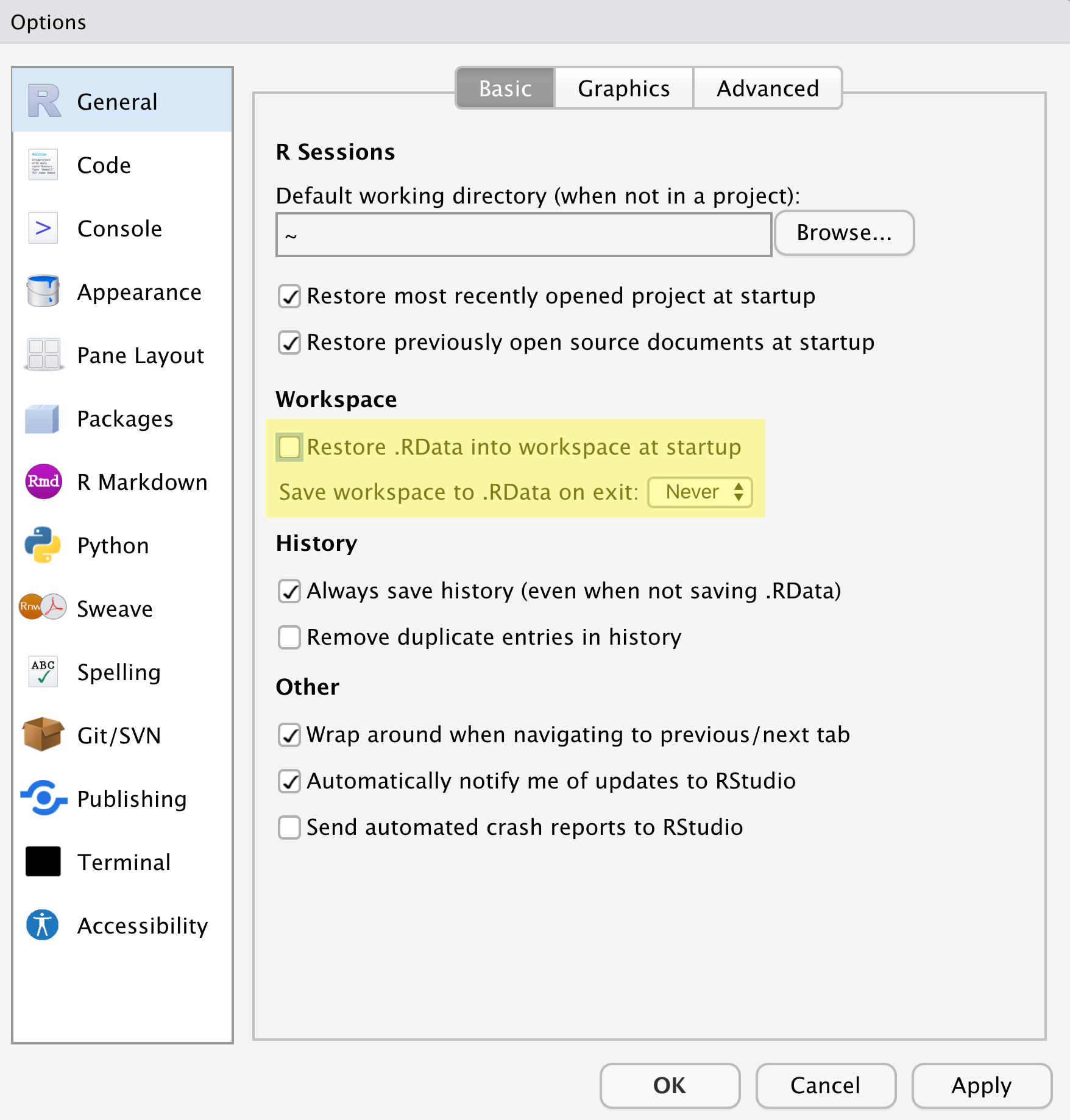
Make sure your settings match those highlighted in yellow. We don’t
want RStudio to store the current status of our R session
and reload it the next time we startR. This might sound
convenient, but for the sake of reproducibility, we want to start with a
clean, empty R session every time we work. That means that we have to
record everything we do into scripts, save any data we need into files,
and store outputs like images as files. We want to get used to
everything we generate in a single R session being
disposable. We want our scripts to be able to regenerate things
we need, other than “raw materials” like data.
Organizing your project directory
If you are teaching remotely and sharing only the
RStudio window, the new windows that pop up while creating
folders will not be shared via Zoom. You can switch to sharing your
entire screen, which will allow learners to see the popup windows.
Using a consistent folder structure across all your new projects will help keep a growing project organized, and make it easy to find files in the future. This is especially beneficial if you are working on multiple projects, since you will know where to look for particular kinds of files.
We will use a basic structure for this workshop, which is often a good place to start, and can be extended to meet your specific needs. Here is a diagram describing the structure that we will end up with as we progress through the workshops:
intro_r
│
└── scripts
│
└── data
│    └── cleaned
│    └── raw
│
└─── images
│
└─── documents
Within our project folder (intro_r), we first have a
scripts folder to hold any scripts we write. We will also
have a data folder containing cleaned and
raw subfolders. In general, you want to keep your
raw data completely untouched, so once you put data into
that folder, you do not modify it. Instead, you read it into R, and if
you make any modifications, you write that modified file into the
cleaned folder. We also have an images folder
for plots we make, and a documents folder for any other
documents you might produce.
Let’s start making our new script folder. Go to the
Files pane (bottom right), and check the
current directory. You should be in the directory for the project you
just made, in our case intro_r. You shouldn’t see any
folders in here yet.
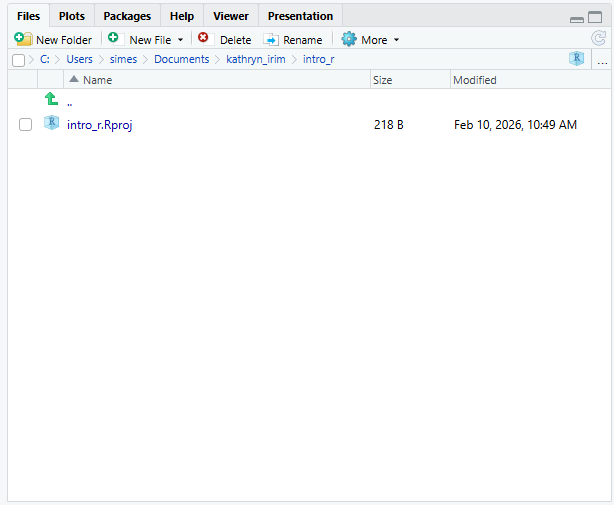
Next, click the New Folder button, and
type in scripts to generate your scripts
folder. It should appear in the Files list now. It’s worth noting that
the Files pane helps you create, find, and
open files, but moving through your files won’t change where the
working directory of your project is.
Working in R and RStudio
The basis of programming is that we write down instructions for the computer to follow, and then we tell the computer to follow those instructions. We write these instructions in the form of code, which is a common language that is understood by the computer and humans (after some practice). We call these instructions commands, and we tell the computer to follow the instructions by running (also called executing) the commands.
Console vs. script
You can run commands directly in the R console, or you
can write them into an R script. It may help to think of
working in the console vs. working in a script as something like
cooking. The console is like making up a new recipe, but not writing
anything down. You can carry out a series of steps and produce a nice,
tasty dish at the end. However, because you didn’t write anything down,
it’s harder to figure out exactly what you did, and in what order.
Writing a script is like taking nice notes while cooking- you can tweak and edit the recipe all you want, you can come back in 6 months and try it again, and you don’t have to try to remember what went well and what didn’t. It’s actually even easier than cooking, since you can hit one button and the computer “cooks” the whole recipe for you!
An additional benefit of scripts is that you can leave
comments for yourself or others to read. Lines that
start with # are considered comments and will not be
interpreted as R code.
Console
- The
Rconsole is where code is run/executed - The prompt, which is the
>symbol, is where you can type commands - By pressing
Enter,Rwill execute those commands and print the result. - You can work here, and your history is saved in the
Historypane, but you can’t access it in the future
Script
- You can make a new
Rscript by clickingFile → New File → R Script, clicking the green+button in the top left corner ofRStudio, or pressingShift+Cmd+N(Mac) orShift+Ctrl+N(WindowsandLinux). It will be unsaved, and calledUntitled1 - If you type out lines of
Rcode in a script, you can send them to theRconsole to be evaluated-
Cmd+Enter(Mac) orCtrl+Enter(WindowsandLinux) will run the line of code that your cursor is on - If you highlight multiple lines of code, you can run all of them by
pressing
Cmd+Enter(Mac) orCtrl+Enter(WindowsandLinux) - By preserving commands in a script, you can edit and rerun them quickly, save them for later, and share them with others
- You can leave comments for yourself by starting a line with a
#
-
Example
Let’s try running some code in the console and in a script. First,
click down in the Console pane, and type out 1+1. Hit
Enter to run the code. You should see your
code echoed, and then the value of 2 returned.
Now click into your blank script, and type out 1+1. With
your cursor on that line, hit Cmd+Enter
(Mac) or Ctrl+Enter
(Windows and Linux) to run the code. You will
see that your code was sent from the script to the console, where it
returned a value of 2, just like when you ran your code
directly in the console.
-
Ris a programming language and software used to run commands in that language -
RStudiois software to make it easier to write and run code inR - Use
R Projectsto keep your work organized and self-contained - Write your code in scripts for reproducibility and portability